
Potato Please Controls: Keyboard, Mouse and Gamepad
Every Potato Please control for PC, plus the 1.0.1 input fixes, gamepad support, tremor settings and rebinding problems.
The Potato Please controls are small: WASD to move, the mouse to look, hold the left mouse button to peel, right mouse button to throw, E to interact, Tab for the journal, R to repile, and Shift to sprint. The game also has full controller support, and the 1.0.1 patch fixed several input conflicts that made the character walk without input.
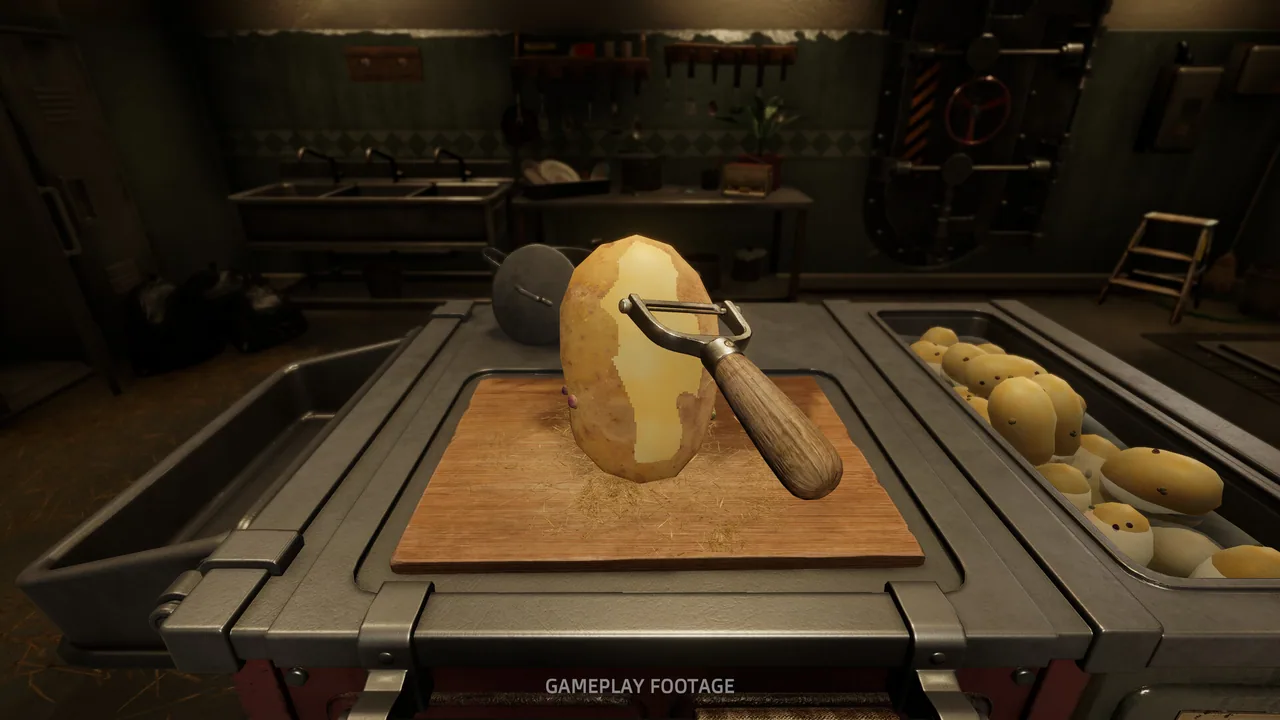
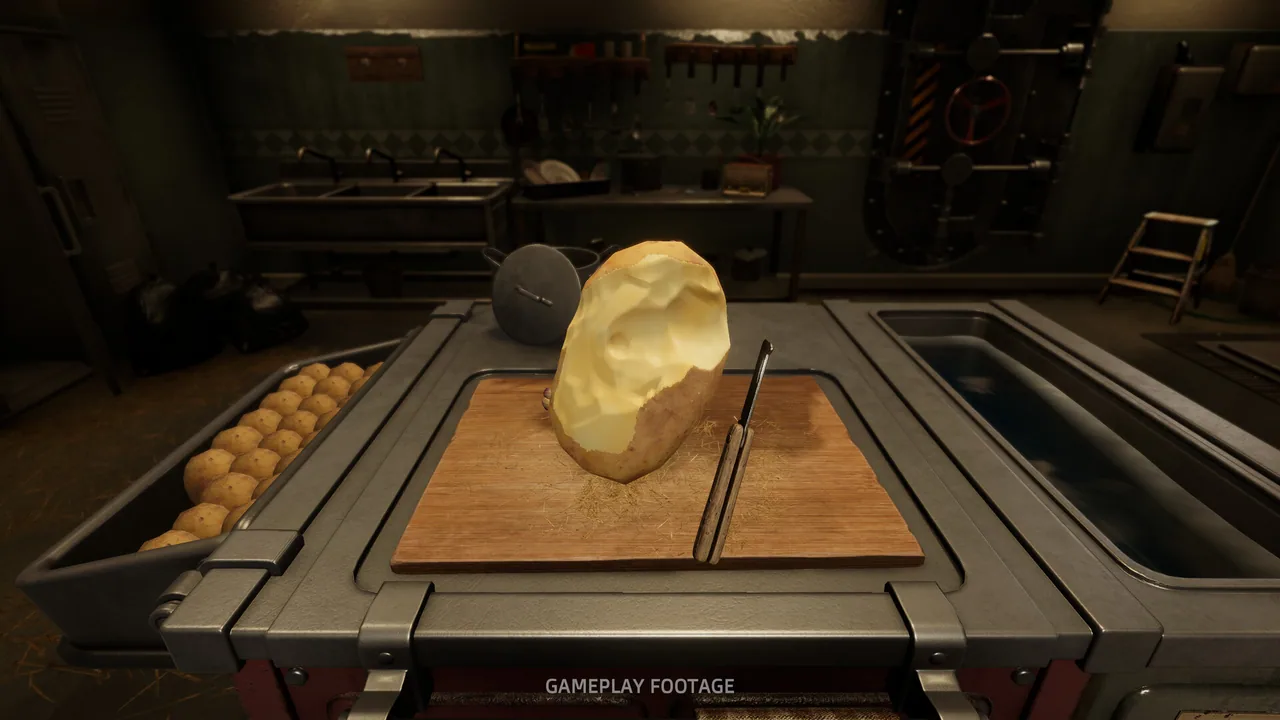
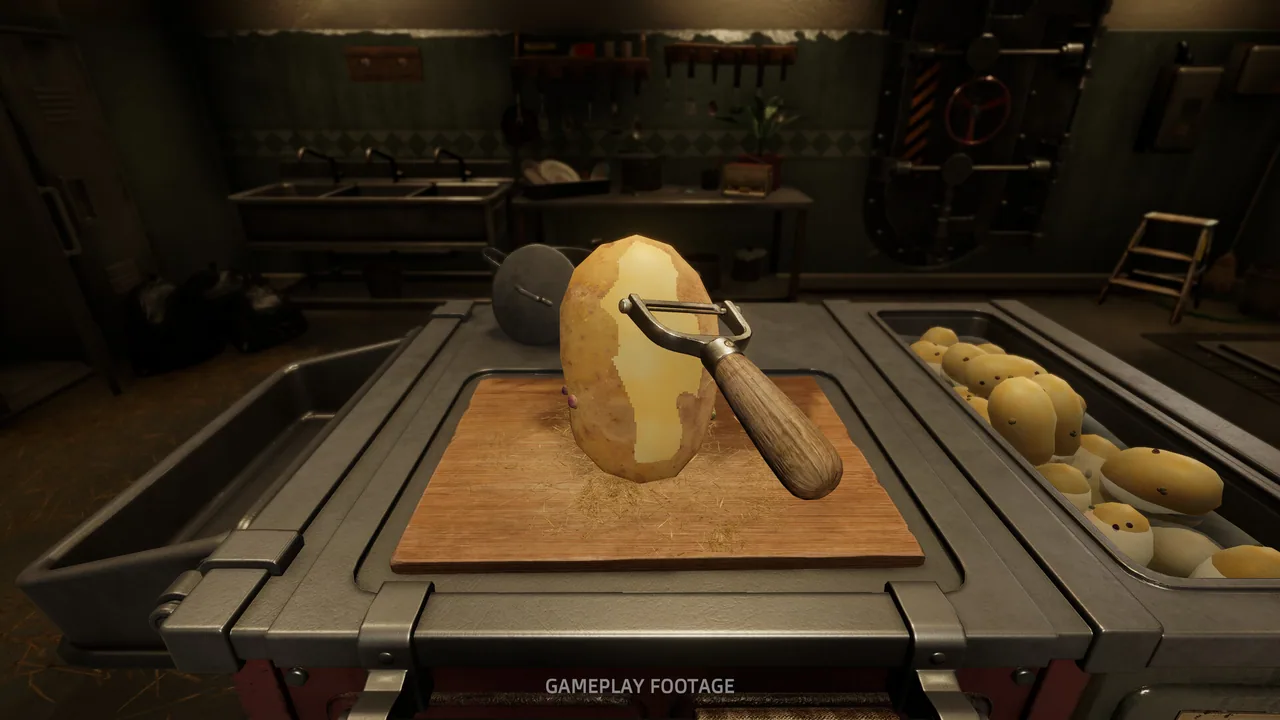
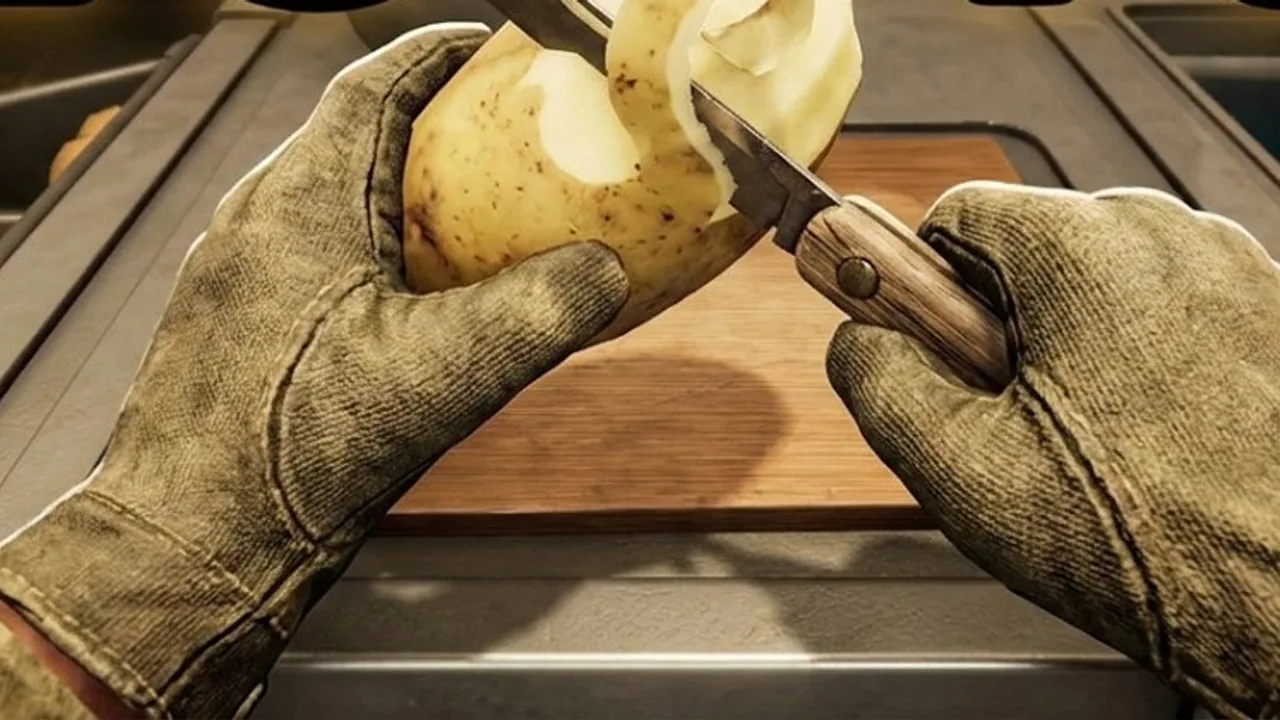
The peeling control is the only one that needs practice. It is not a click-to-animate action; the knife follows the cursor, and the cut depth changes with the angle. The rest of the bindings are standard first-person controls.
What are the default PC bindings?
| Action | Binding | Notes |
|---|---|---|
| Move | W, A, S, D | Standard first-person movement |
| Look | Mouse | Sensitivity is in the settings menu |
| Peel or cut | Hold left mouse button | Short strokes remove less flesh |
| Throw potato | Right mouse button | Also drops a held potato |
| Interact | E | Pick up, open, tear sacks, feed the dog |
| Journal and skills | Tab | Spend skill points and read letters |
| Repile | R | Rebuilds the potato mountain |
| Sprint | Shift | Uses stamina |
| Pause or menu | Esc | Opens the pause menu |
The game does not use a separate “peel mode.” You always have the knife when a potato is in your hand. Holding the left button starts the cut; releasing it stops. If you move the cursor too fast across the potato, the knife skips and leaves skin behind. If you press too hard into the center, it removes flesh and counts as waste.
The fastest clean peel is a series of short strokes around the circumference. A single long stroke looks fast but usually digs into the potato and costs more money than it saves.
How does controller support work?
The store lists full controller support. The game detects a connected gamepad and displays the matching prompts in the settings menu. The standard layout is left stick to move, right stick to look, a face button to interact, and a trigger to peel. The exact button glyphs depend on the controller, so check the in-game binding screen rather than relying on a generic diagram.
The 1.0.1 patch fixed a specific controller-family bug: wheels, pedals, flight sticks, and virtual joysticks could make the character walk forward automatically or prevent WASD from working. If you use a racing wheel or HOTAS on the same PC, unplug it before launching Potato Please if the character still drifts.
The same patch also fixed duplicate control entries in the settings menu that prevented some keys from being rebound. If you tried to rebind before 1.0.1 and gave up, delete the old input configuration or reset to defaults and try again.
Which settings should you change first?
The default mouse sensitivity is usable, but the peeling motion benefits from a slightly lower sensitivity than the camera. If you play on a high-DPI mouse, lower the sensitivity before you start a shift; changing it mid-run makes the knife feel inconsistent.
The hand-tremor setting is the most important accessibility option. It changes how much the knife wobbles without changing the quota, payment, or achievements. Turning it up is not a difficulty change. Players who struggle with fine mouse control should raise it before trying to “get good” at the default.
Invert Y affects only the camera after 1.0.1. Before the patch, it could also affect the peeling motion, which made the knife feel inverted. If you are returning to the game, check the setting once and leave it alone.
Other settings worth checking:
- Field of view: a wider FOV makes the potato pile easier to read but can make the knife feel smaller.
- Subtitles: the story letters and radio lines are easy to miss without them.
- Master volume: the dog barking and the machine hum are useful audio cues.
- Language: the 1.0.1 patch fixed long translations that overlapped the quota and upgrade titles.
Why does the character walk by itself?
A connected wheel, pedal set, flight stick, or virtual joystick can send a constant movement input. The 1.0.1 patch added a fix for this, but it cannot compensate for a device that is still reporting a nonzero axis. Unplug the device, restart the game, and check the settings menu for a duplicate binding.
If the character still moves, look for a stuck key or a controller drifting at rest. Potato Please does not have a dead-zone slider for every device, so the operating system or the controller software may be the place to fix it.
A separate 1.0.1 fix addressed the “WASD stops working” bug caused by duplicate control entries. If only some keys fail, reset the bindings to default and rebind one key at a time.
Changing a binding mid-run can leave the old input active until the controls menu is reopened. Rebind in the main menu, then start a shift. If the knife stops responding after a change, reset the bindings to default and rebind one key at a time.
Can you play with one hand?
Not comfortably. Peeling requires simultaneous camera movement and a held mouse button, and the game does not have a toggle-to-peel option in the current build. A controller with a trigger hold is easier for some players, but the camera still needs the right stick.
The tremor setting helps with fine control, not with one-handed play. If you need a fully one-handed layout, check the Steam controller configuration for a community profile before you start. The game supports Steam Input through the standard controller layer. If the default layout still fights you, the beginner guide → covers the first shift's inputs in the order you actually use them.
FAQ
What button do you hold to peel?
Hold the left mouse button on PC. On a controller, hold the peel trigger shown in the settings menu. Releasing the button stops the cut.
How do you drop a potato?
Press the right mouse button to throw or drop the held potato. On a controller, use the throw button shown in the binding screen.
Why can't I rebind some keys?
The 1.0.1 patch fixed duplicate control entries that blocked certain rebinds. If you still cannot rebind a key, reset the controls to default, unplug extra input devices, and try again.
Does Potato Please support Steam Deck?
The store lists Windows and full controller support but does not list Steam Deck Verified status. Check the Steam Deck compatibility panel on the store page before buying.
Official source: Potato Please on Steam ↗
Official source: Hotfix 1.0.1 ↗
The Steam discussions hub ↗ is the best place to check whether a controller-specific issue has been reported since 1.0.1. The achievements page ↗ confirms that no achievement requires a specific input device.
More Potato Please Guides
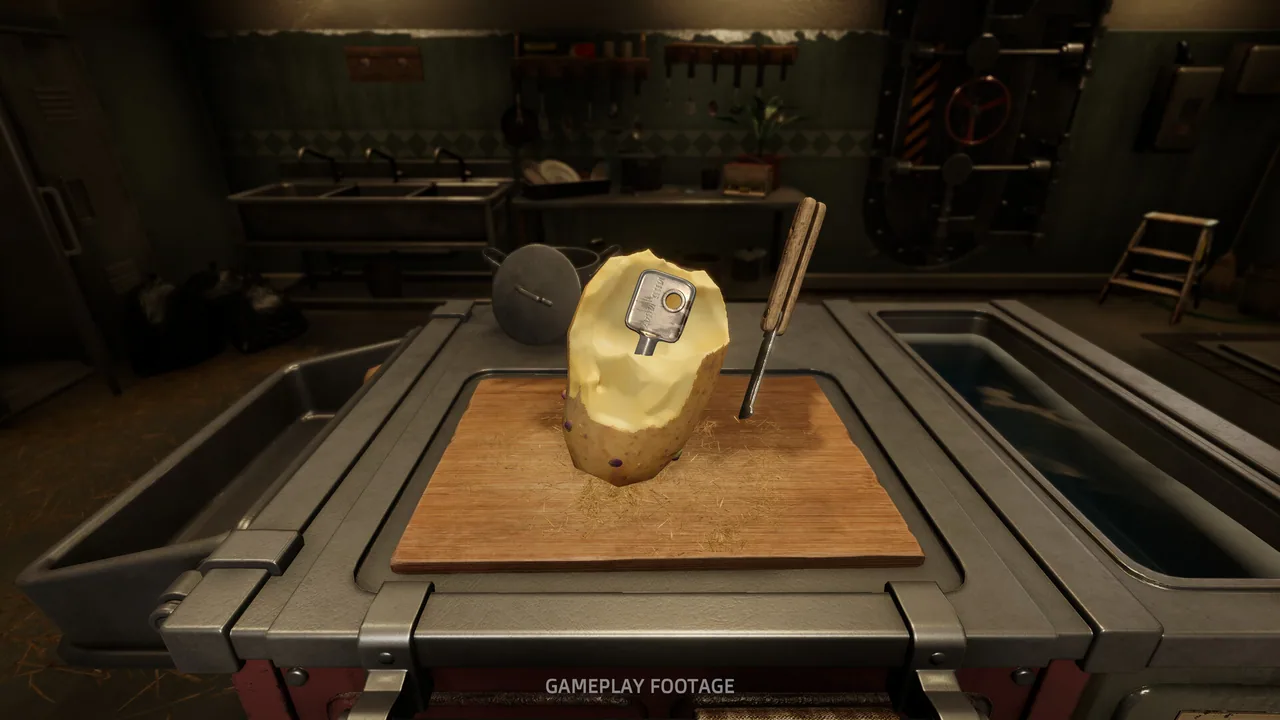
Potato Please Achievements Guide: All 20 Unlocks
All 20 Potato Please achievements, how to unlock each one, the hidden ending triggers, and the three unlocks nobody has fully solved.
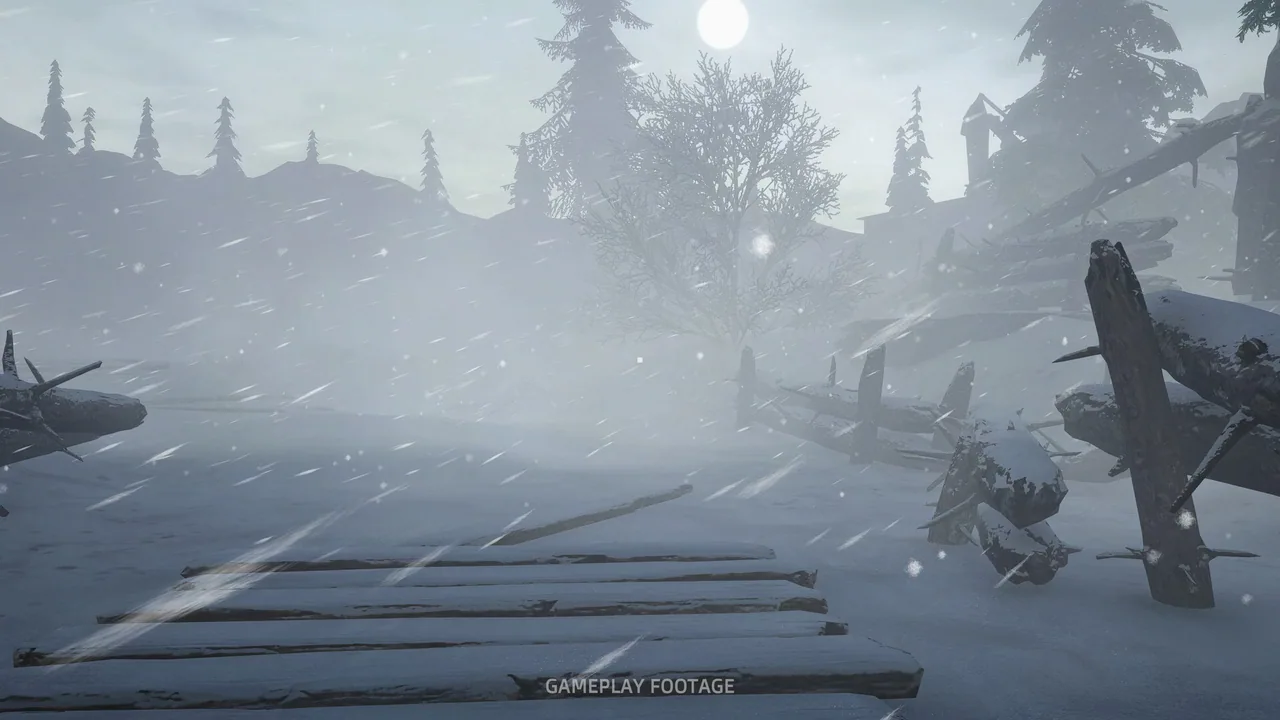
Potato Please All Endings: Every Route Explained
Every Potato Please ending explained: the three train routes, the hidden outcomes, how to replay the final choice and unlock Every Path Has a Price.
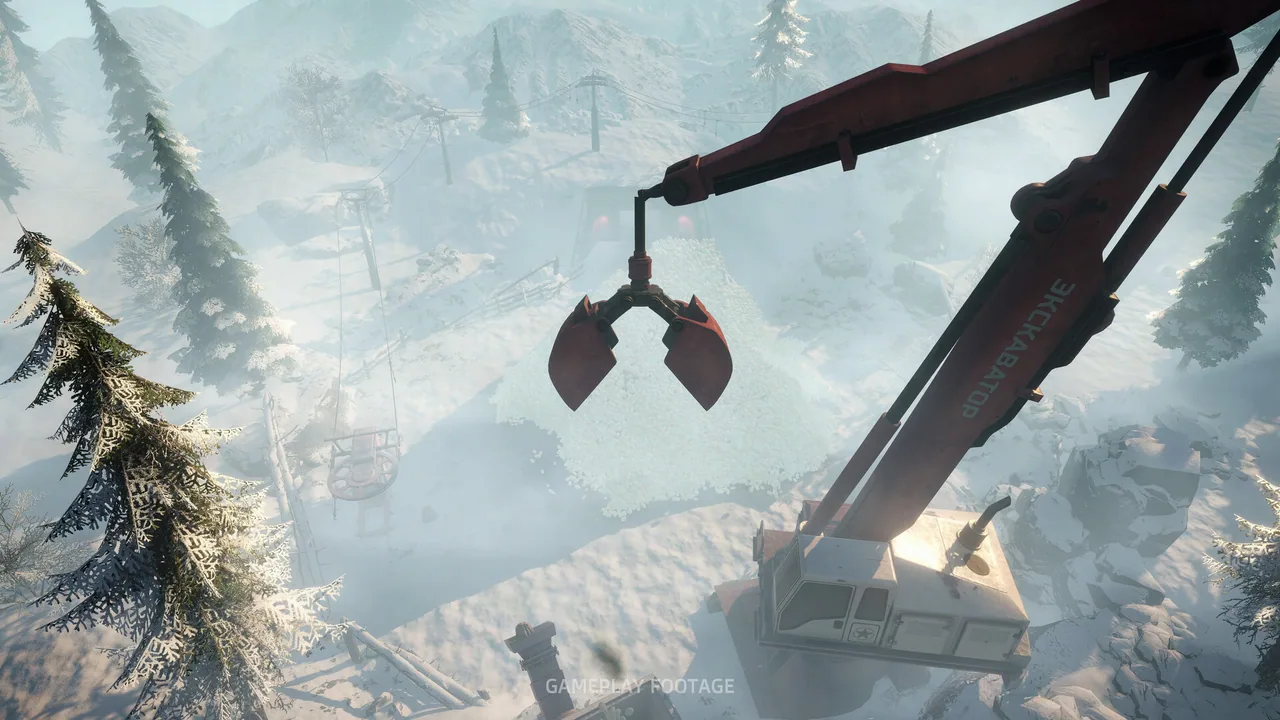
Potato Please Automation: Layout and Fixes
Build a Potato Please automation line that keeps every peeler fed, with layout advice, throughput fixes and machine priorities.
Potato Please Beginner Guide: The First Two Hours
A practical Potato Please beginner guide for the first shift, the first $300, and the mistakes that stall your quota before automation.
Potato Please Best Knife: Steel vs Rusty
The best knife in Potato Please is the Steel Knife at $2.70. See why it beats the Rusty Knife, when to buy it and what it cannot fix.
Potato Please Best Tools: Ranked for Each Phase
The best tools in Potato Please by phase, from the Steel Knife to the Auto Peel Machine, with prices and the jobs each one actually does.

Potato Please Difficulty: Standard vs Hard
What changes in Potato Please Hard mode, how Strict peeling works, and whether any achievement requires the harder setting.
Potato Please Guide: Shift 1 to the Train
A complete Potato Please walkthrough from the warm-up shift to all three train endings, with real upgrade prices and quota fixes.